Turn Your Paper Menu into a QR Menu with One Photo
Take a photo of your paper menu and QRbox reads every category, item and price, adds photos and translations, and publishes it behind a QR code.
· 5 min read
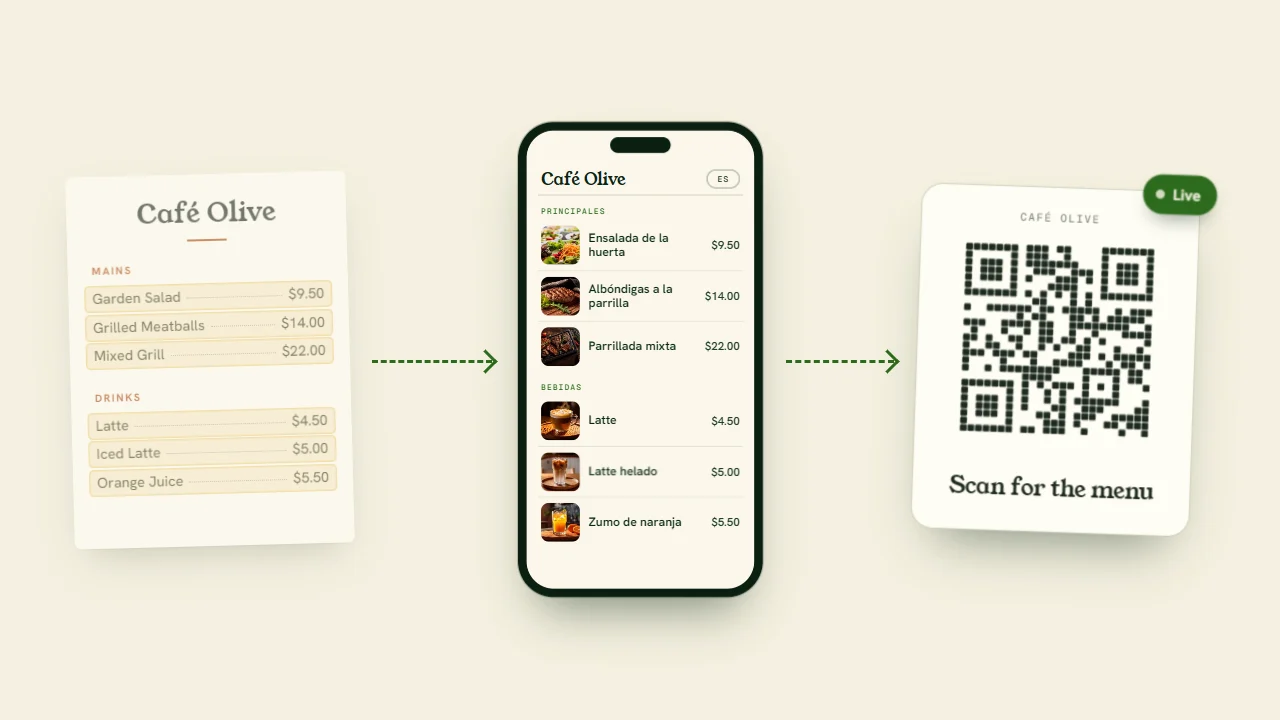
The slowest part of moving to a QR menu has always been the typing. A restaurant with eighty dishes means eighty names, eighty prices and a long evening in front of a form. QRbox now does that part for you: you take a photo of the paper menu you already have, and it turns the paper menu into a QR menu you can publish the same day.
How to turn a paper menu into a QR menu
- Take a photo of your menu. In the menu editor, choose Import from a photo. Photograph each page with your phone, or pick photos you already have. You can add up to eight pages at a time.
- Let QRbox read it. Tap Read menu. The categories, items and prices on the page are read into a draft. This usually takes under a minute.
- Check, add, print. Correct anything you like, add the items to your menu, then download your QR code and put it on the tables.
That is the whole job. No spreadsheet, no template to fill in, no copying dish names one by one.
What QRbox reads from a menu photo
The import reads the menu the way a guest would, and keeps its structure:
- Categories, in the order they are printed: starters, mains, desserts, drinks
- Item names and descriptions
- Prices
- Price options, such as small and large, or single and double
A page that could not be read is flagged, so you know to take that photo again instead of finding a hole in your menu later.
Nothing changes until you confirm
Reading a photo is not the same as publishing it. What you get first is a draft: every name and price is in an editable field, and you can remove an item or a whole category before anything is added. Your live menu stays exactly as it was until you press the button that adds the items.
This matters most for prices. Check them against the paper once; it takes a minute and it is the one thing your guests will hold you to.
Photos and translations are added for you
A menu with photos sells more than a list of names, but most small restaurants do not have a photo of every dish. From the same screen you can ask QRbox to find photos, and it suggests a fitting picture from our photo library for the new items. Remove any that do not look like your dish, and keep the rest.
If your menu is offered in more than one language, the new items can be translated into those languages as they are added, so a tourist scanning the code sees the dish in their own language from the first day. You can still edit every translation by hand.
Already on QRbox? Update prices from a new photo
The import is not only for the first day. When your prices change and you have a freshly printed menu, photograph it again:
- Items that are already on your menu are not added twice.
- If an item's price on the photo is different, QRbox offers to update it. Untick the ones you do not want to change.
- Anything new on the photo is added as a new item.
It is the fastest way to carry a season's price changes into your digital menu.
Tips for a menu photo that reads well
- Use a sharp, well-lit photo. Daylight near a window is better than a ceiling lamp.
- Keep the whole page in the frame, and photograph it flat rather than at an angle.
- Avoid glare on laminated or glossy menus; tilt the page slightly until the reflection is gone.
- One page per photo. A two-page spread works better as two photos.
Printed menus read best. Handwritten boards and very decorative lettering may need a few corrections in the draft.
Frequently asked questions
Does importing a menu from a photo cost extra?
No. It is part of QRbox, including during the 14-day free trial, and you do not need a credit card to try it.
How long does it take to create a QR menu this way?
Reading a page usually takes under a minute. With a few minutes to check the draft, most menus are ready to publish in one sitting.
Do I need a new QR code when the menu changes?
No. Your QR code points to your menu, not to a file. Change a price or import a new photo, and the same printed code shows the updated menu.
What if something is read wrong?
You see everything before it is added. Fix the name or the price in the draft, or remove the item and add it by hand later.
Try it with your own menu
Pick up the menu on your counter, open QRbox and photograph it. Start your free trial and see your paper menu as a QR menu before your next service. If you are still deciding whether a digital menu is right for you, read why modern restaurants are switching to QR menus.